 Split Print
Epson prints too large? Check Borderless Expansion
If your tiled pages look right in the PDF but print slightly too large on an Epson, check Expansion when using Borderless printing. This easily missed setting can add enlargement after Split Print has prepared the pages, making the printed joins harder to match.
I ran into this while printing a Split Print PDF on my Epson. The pages in the PDF were correct, but the physical prints were slightly larger than expected. I traced that extra enlargement to the printer's Expansion setting in Borderless mode.
Why borderless printing can affect the joins
Some Epson borderless modes enlarge the image beyond the paper edges to avoid white margins, then crop the part outside the sheet. Epson's borderless troubleshooting guide recommends reducing enlargement when unwanted cropping occurs.
With tiled pages, losing a little image at each edge can matter at the join. A PDF that looks consistent on screen can therefore produce sheets that need another look at the printer settings.
Find Expansion in the Epson print options
- Open the print dialog and select your Epson printer. Check whether you are using a Borderless paper size or option.
- Expand Printer Options and look for Expansion, as shown below. Depending on your model and driver, it may be inside Print Settings instead.
- Open Expansion and move the slider toward Min to reduce enlargement. Confirm the change before printing your test pair.
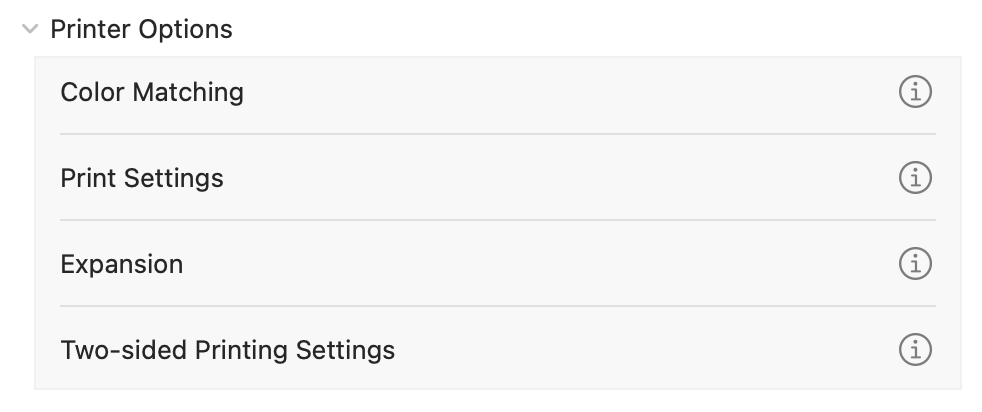
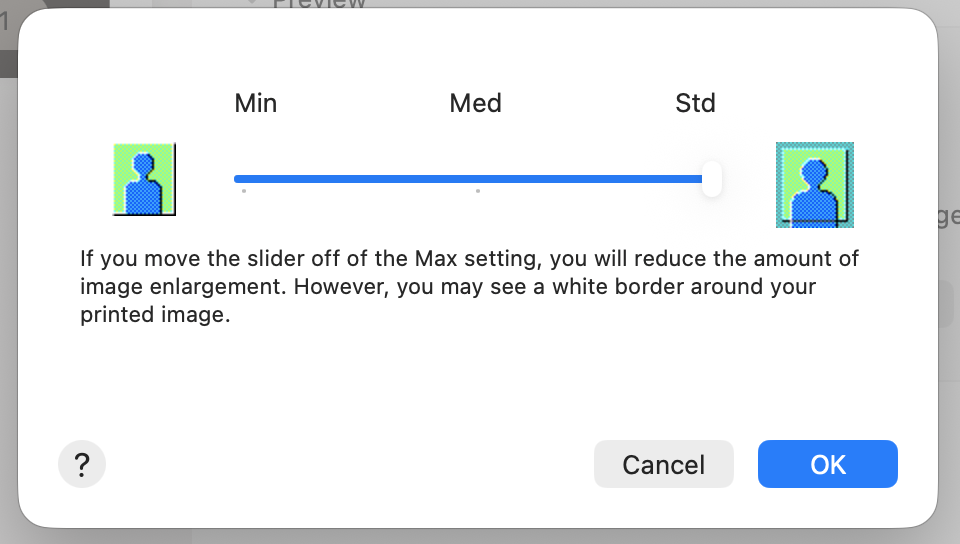
Min does not guarantee zero enlargement or exact physical dimensions. The available controls depend on the printer and driver. Epson also notes that choosing Min can leave white borders in its Mac print options documentation.
Test two neighboring pages first
Keep the paper size and orientation consistent with the prepared PDF. When printing an exported PDF, start with 100% scale and check that another fit-to-page setting is not changing the size. Borderless Expansion is a separate control worth checking even then.
Print two neighboring output pages with the same settings. Compare repeated details along their shared edge before trimming or gluing. If your dialog cannot select individual pages, export the PDF and use a PDF printing app that offers page selection.
If the join still does not match, check the paper, print scale and printable area again. Turning off Borderless may introduce unprinted margins, so inspect the edges before printing the full set. Follow the full Split Print printing guide for overlap and assembly steps.
Split Print prepares two-sheet or four-sheet layouts and fits the source to the selected paper. It does not preserve the original document's physical dimensions at 1:1. For measured patterns or plans, use a workflow with explicit scale control and measure a reference on the print.